
Table of contents
You converted an image to SVG, zoomed in, and found wobbly lettering, extra dots, or a background that should not be there. The file extension changed, but the design still needs work.
The important distinction is between scalable geometry and accurate geometry. A traced outline can scale cleanly while following the wrong shape. This guide helps you diagnose that result in the FixTools Image Vectorizer before you spend time changing settings at random.
For the full conversion workflow, start with converting a PNG or JPG logo to SVG.
Raster versus vector: what tracing can preserve
A raster image stores a grid of pixels. A vector drawing describes shapes with coordinates and curves. Tracing estimates regions and outlines from the grid and writes shapes that approximate what it sees.
That process cannot determine the designer's intent. A compression artifact, dust spot, or damaged letter may look like genuine artwork to the tracer. Likewise, a perfectly smooth traced curve does not prove it matches the original curve.
SVG can also contain a raster image inside the file. Merely wrapping a PNG in SVG leaves the pixel grid intact. A vector trace should contain drawing geometry, but the quality of that geometry still depends on the source and tracing choices.
Problem: rough or blocky outlines
Look at the source first. If you can see stair-step edges in the PNG or JPG, the tracer has limited information to work with. Enlarging the file before tracing does not recover the original boundary.
Try a cleaner original export, especially one without JPEG halos. For a scanned drawing, improve the lighting and contrast and avoid shadows crossing the artwork. FixTools reduces the tracing input to a maximum side of 1,024 pixels. Compare its prepared preview with your original: thin details can be lost during this step. Crop unnecessary margins before retrying. The page offers presets rather than individual curve controls.
Do not judge success only at extreme zoom. Check both the intended display size and the enlarged outline. Excessive smoothing can erase a deliberate notch or turn a sharp corner into a rounded one.
Problem: dots, thin strokes, or letter gaps disappear
Noise filtering can remove small regions that the algorithm treats as speckles. A real dot over a letter or a fine decorative mark can be small too.
FixTools currently offers Color logo / illustration, Black and white line art, and Photo (stylized) presets, without a separate noise-filter slider. Compare the appropriate presets and inspect the same detail each time. If the detail is not distinguishable in the prepared input, look for a better image, crop to retain more useful pixels, or reconstruct it manually.
Traced lettering deserves particular care. Letters may look plausible at a glance while their counters, spacing, or stroke weights have changed. For exact text, use the original font in a vector editor. Tracing outlines does not recover font names or editable words.
Problem: too many shapes or an unexpectedly large SVG
A photograph, noisy scan, or shaded illustration may contain many small color regions. Describing all of them as paths can take more space than storing a compressed raster image.
Start by deciding which details matter. Clean irrelevant noise from the source where possible. Compare the available presets and the downloaded size as well as the preview. The FixTools page does not expose separate color-detail or noise controls. More detail is not automatically more useful.
For website photography, consider keeping a raster image and choosing an appropriate format and size. The PNG, JPG, and WebP guide covers that decision. SVG is a good fit for many simple symbols; it is not a universal image-compression method.
Worked example: simple shapes versus a textured image
We tested two original 128 × 128 fixtures with the same pinned VTracer engine, version 1.0.0-alpha.4. A flat two-color logo on white produced three paths with Color logo / illustration. A synthetic gradient-and-texture JPG produced 242 paths with Photo (stylized). Both outputs contained paths rather than an embedded image.
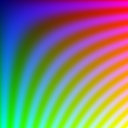
Compare the synthetic source JPG with its engine-generated SVG. The logo example is in the step-by-step walkthrough.

This is an engine-level illustration of differing output complexity, not a controlled comparison of presets or a benchmark for real photos. The fixtures and presets differ, and the textured image is synthetic. Path count alone does not measure visual quality. The files show why a successful conversion still needs a visual review.
Problem: gradients become bands or colors shift
A shaded region can become multiple filled shapes. Fewer regions may produce visible bands; more regions can increase file complexity without recreating the original smooth gradient exactly.
Decide whether you want a stylized illustration or a faithful photograph. A poster-like trace may be useful for the first goal. A raster image generally serves the second better.
For brand colors, check the actual fill values in a vector editor against approved specifications. Do not assume an automatic trace preserves every source color exactly, especially when color simplification is involved.
Problem: the background is still visible
SVG supports transparency, but it does not make every traced image transparent. A white JPG background may become a white shape. In FixTools, transparent and partially transparent input pixels are deliberately composited onto white before tracing, too. The Prepared original (white background) preview shows that input. This version does not retain PNG transparency.
Inspect the downloaded SVG on a contrasting background. If background removal is needed, use an appropriate preparation tool or delete the unwanted background shape in a vector editor, then inspect thin strokes and interior gaps again.
Because FixTools applies a white background during preparation, removing a background before tracing will not by itself produce transparent output. Remove the appropriate shape from the final SVG instead.
Before removing a white region, check whether it belongs to the artwork. A white symbol on a colored badge and an unwanted white page background require different treatment.
Problem: the image is rejected or tracing times out
Use a valid PNG or JPG up to 10 MB, no more than 16 megapixels, and no more than 16,000 pixels on either side. Renaming a different format to .png or .jpg does not convert it.
A trace has a 30-second timeout. If it stops, try a cropped or simpler source. Reset / cancel clears the current work so you can start again. Keep the original file before resizing or simplifying it.
Photos and logos need different success criteria
For a simple logo, evaluate the silhouette, spacing, corners, small details, and intended colors. It is reasonable to expect a result that can be cleaned into a useful vector asset when the source is clear.
For a photograph, evaluate whether you like the abstraction. Hair, foliage, fabric, skin texture, and subtle shadows can become a large collection of shapes. A technically valid SVG may still be a poor replacement for the photo.
Stop tracing when the output is harder to maintain, larger, or less faithful than a suitable raster version. Choosing a raster format for that image is a legitimate outcome.
A repeatable way to compare changes
- Save the original source and make a default trace
- Pick one visible defect, such as a missing dot or a jagged corner
- Change one relevant setting or improve the source, then trace again
- Compare the same area at the same zoom level
- Check the whole image at its intended display size
- Download the preferred version and verify it in its destination application
Keep a brief note of the settings you used. If a change fixes one area while damaging another, manual editing may be faster than searching for one automatic setting that satisfies both.
Return to the Image Vectorizer for a new comparison, or follow the logo tracing walkthrough from source preparation through download. For other image preparation tasks, see the complete image tools guide.
Technical references
The VTracer project describes its raster-to-vector approach and upstream options. The controls available in FixTools depend on its integration. MDN's SVG overview explains how SVG represents graphics, including vector and raster content.
Try it free — right in your browser
No sign-up, no uploads. Your data stays private on your device.
Frequently asked questions
4 questions answered
QWhy does my SVG still look pixelated?
An SVG may contain an embedded raster image, or its traced paths may follow the blocky edges of a small source. Vector paths scale cleanly, but they can still describe an inaccurate or jagged shape.
QCan VTracer turn a photo into a perfect vector image?
No. Tracing approximates image regions with shapes. Photographic texture, gradients, and fine details can become many paths or a simplified, poster-like result. Keep a raster image when preserving the photo is the goal.
QWhy did tracing remove parts of my logo?
Small details may be absent from the source, merged into nearby regions, or removed by noise filtering. Start with a clearer source and compare the available presets. FixTools does not expose a separate noise-filter slider; persistent missing details may need manual repair.
QDoes an SVG automatically have a transparent background?
No. SVG supports transparency, but FixTools composites input transparency onto white before tracing. Its output is not a transparency-preserving conversion. Remove the appropriate background shape in a vector editor if needed, then inspect the edges.
O. Kimani
Software Developer & Founder, FixTools
Building FixTools — a single destination for free, browser-based productivity tools. Every tool runs client-side: your files never leave your device.
About the authorRelated articles
How to Convert a PNG or JPG Logo to SVG with VTracer
Trace a raster logo into SVG paths with VTracer. Prepare your PNG or JPG, compare the result, and know when a logo needs manual cleanup.
Read articleImages & MediaPNG vs JPG vs WebP: Which Image Format Should You Use?
When to use each format for web, social media, and print. A practical guide to choosing the right image format, with a free converter to switch between them.
Read articleImages & MediaFree Image Tools Online: The Complete FixTools Guide (2026)
Eighteen free browser-based image tools, compress, resize, convert, crop, watermark, remove backgrounds, and more, all running on your device with no upload, no signup, and no watermarks. The complete directory and when to use each.
Read article